How to Set Up an eSIM on Your Smartphone: Complete Activation Guide
An eSIM (embedded SIM) is a programmable digital SIM card integrated directly into your smartphone's hardware. Instead of swapping physical plastic SIM cards when traveling or changing providers, an eSIM allows you to download and activate cellular data plans digitally in minutes.
Setting up a global data plan with Commesim takes less than two minutes. Whether you are using an iPhone or an Android device, this guide walks you through every step of the installation process.
Prerequisites Before Installing Your eSIM
Before starting the setup process, ensure your device meets these three basic requirements:
An Unlocked Device: Your phone must not be locked to a specific mobile carrier.
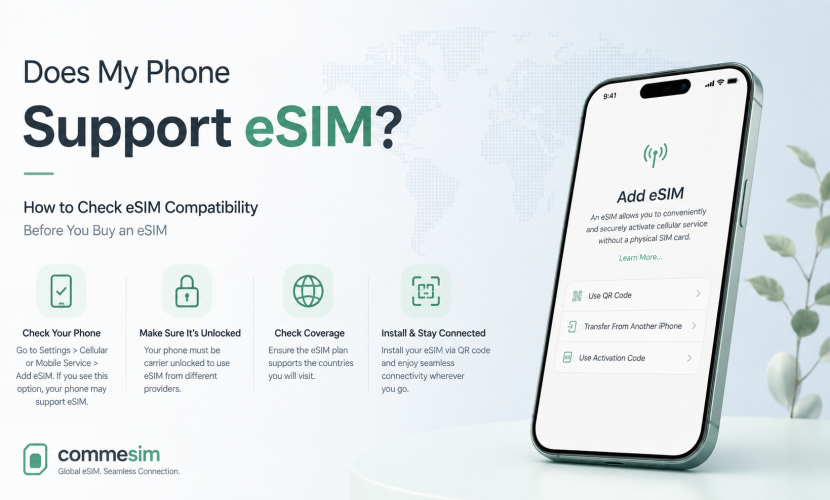
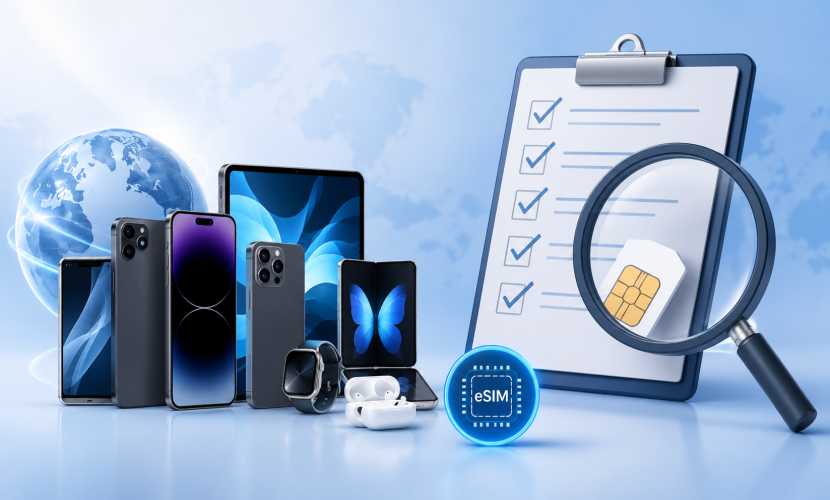
eSIM Compatibility: Your smartphone must support eSIM technology (iPhone XS or newer, Samsung Galaxy S20 series or newer, Google Pixel 3 or newer).
Active Internet Connection: You need a stable Wi-Fi network or cellular connection to download the eSIM profile to your phone.
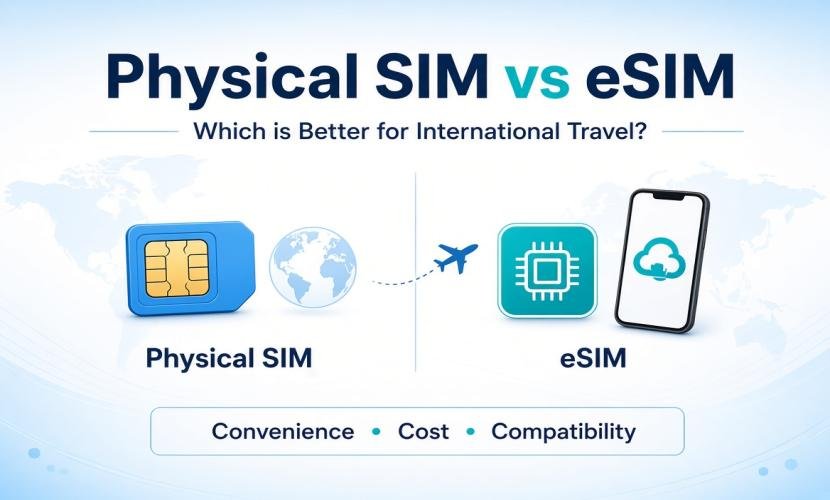
Physical SIM vs. Commesim eSIM
| Feature | Physical SIM | Commesim eSIM |
| Delivery Method | Physical shipping or local kiosk pickup | Instant digital delivery via email / app |
| Installation Time | Requires SIM tray tool & physical swap | 1 to 2 minutes via Settings scan |
| Storage Capacity | 1 physical profile per slot | Multiple digital profiles stored on device |
| Roaming Costs | Often subject to expensive carrier fees | Affordable local data plans in 190+ countries |
| Security | Can be lost, stolen, or damaged | Digitally secured inside phone hardware |
How to Set Up an eSIM on iPhone (iOS)
Installing your Commesim data plan on an Apple iPhone requires just a few taps.
How to Set Up an eSIM on Android (Samsung & Google Pixel)
Android setup steps may vary slightly depending on your device manufacturer, but the core process remains identical.
For Samsung Galaxy Devices:
Navigate to Settings > Connections > SIM Manager.
Tap Add eSIM (or Add Mobile Plan).
Select Scan QR code from service provider.
Scan the QR code sent by Commesim.
Tap Add / Confirm once the plan is detected.
Set Preferred SIM > Mobile Data to your Commesim profile.
Go to Mobile Networks and enable Data Roaming for your Commesim line.
For Google Pixel Devices:
Go to Settings > Network & Internet > SIMs.
Tap + Add SIM > Download a SIM instead?
Tap Next and scan your Commesim QR code.
Select Use Commesim for mobile data.
Enable Data Roaming under the Commesim settings tab.
3 Important Pro-Tips for Travelers
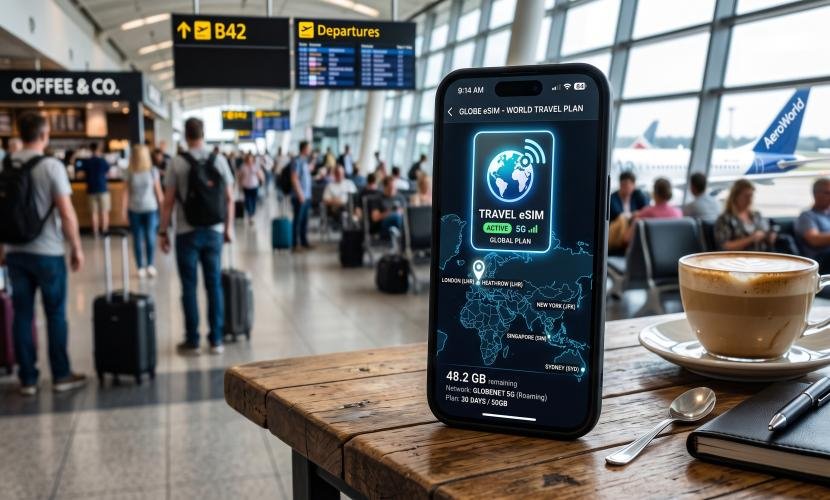
Install Before You Fly: Download and install your Commesim eSIM profile before departure while on your home Wi-Fi. The data package will automatically activate once your phone connects to a supported local network abroad.
Keep Your WhatsApp Number: Changing your data line to Commesim does not affect apps like WhatsApp, Telegram, or iMessage. When prompted, select "Keep existing number".
Keep Primary SIM Active for SMS: Leave your primary line enabled for receiving two-factor authentication (2FA) security codes via SMS, but ensure its data roaming is turned off.
Frequently Asked Questions (FAQ)
Q: How long does it take for a Commesim eSIM to activate?
A: Activation takes 1 to 3 minutes after scanning the QR code and connecting to a supported local network at your destination.
Q: Can I reuse the same eSIM QR code on multiple phones?
A: No. Each eSIM QR code is unique and can only be scanned and activated once on a single device for security reasons.
Q: Do I need Wi-Fi to set up an eSIM?
A: Yes, an active internet connection (Wi-Fi or cellular data) is required to download the eSIM profile from the server to your phone.
Q: Will my physical SIM card stop working when I activate an eSIM?
A: No. Dual-SIM functionality allows your physical SIM card and Commesim eSIM to operate simultaneously without interference.